
Photo by Danist Soh on Unsplash
Microsoft Features: DSPM for AI
Estimated Read Time: 5 minutes
In my previous blog, I gave an introduction to DSPM for AI. I discussed some key data security concerns that organizations are raising with widespread generative AI usage, provided an overview of the features available within DSPM for AI, and summarized some examples of why organizations would want to use DSPM for AI to help secure their data.
In this blog, I’ll provide an overview of the pre-requisites for starting to work with DSPM for AI as well as a practical guide for implementing them. I will also provide some of the first steps that organizations may want to take to begin securing their data estate.
For those interested, here are links to the other blogs in my DSPM for AI series (links will become available as the blogs are published):
- An Introduction to Data Security Posture Management for AI
- Getting Started with Data Security Posture Management for AI
- Understanding Your Organization’s AI Activity with DSPM for AI
- Safeguarding AI Activity with DSPM for AI
Implementing DSPM for AI Prerequisites
As mentioned in my introductory post, DSPM for AI provides a unified view of “AI-related” insights and policies. To benefit from these capabilities, the following prerequisites must first be implemented:
1. Enable Microsoft 365 audit
By default, Microsoft 365 audit is turned on for all organizations. However, it is prudent to verify that this is the case in your tenant by running the following Exchange Online PowerShell cmdlet and ensuring that it returns a value of True:
Get-AdminAuditLogConfig | Format-List UnifiedAuditLogIngestionEnabledIf the above cmdlet returns a value of False, auditing can be turned on in the Purview portal or through the Exchange Online PowerShell module.
To turn on auditing in the Purview portal, navigate to the Audit tab (https://purview.microsoft.com/audit/auditsearch) and click on “Start recording user and admin activity”.
To turn on auditing through the Exchange Online PowerShell module, run the following cmdlet:
Set-AdminAuditLogConfig -UnifiedAuditLogIngestionEnabled $true2. Deploy the Microsoft Purview browser extension to all approved browsers
In order to track activities such as a user navigating to a generative AI website through their browser (e.g., https://chatgpt.com/), the device must have the Purview browser extension installed. At the time of writing, browsers that support this extension include Edge, Chrome, and Firefox.
For testing purposes, the browser extensions can be installed by simply downloading the extension from the browser’s extension store. For managed deployments, Microsoft Intune and group policies can be leveraged to configure and assign force install settings.
Learn more about the Microsoft Purview Extension for Edge
Learn more about the Microsoft Purview Extension for Chrome
Learn more about the Microsoft Purview Extension for Firefox
3. Onboard devices to Microsoft Defender for Endpoint
Onboarding devices to Microsoft Defender for Endpoint is required at a minimum in passive mode (i.e., monitoring) in order to support policies for endpoints that monitor and/or control interactions with AI. For example, onboarding devices enable endpoint data loss prevention policies to monitor and protect content shared with Copilot experiences (e.g., Microsoft 365 Copilot) and Enterprise AI apps (e.g., ChatGPT Enterprise).
There are many ways to onboard devices including group policy, Microsoft Intune, Microsoft Configuration Manager, running local scripts, etc. For more information and guidance on onboarding Windows devices into Microsoft 365, feel free to refer to the following Microsoft Learn article: Onboard Windows devices into Microsoft 365 overview.
4. Assign permissions to appropriate users / groups
Although assigning permissions to users/groups is not listed as a prerequisite in the DSPM for AI overview page, it is a necessary step towards effective operationalization.
At a high level, the following roles and role groups can view, create, and edit items in DSPM for AI:
- Microsoft Entra ID compliance administrator
- Microsoft Entra ID global administrator
- Microsoft Purview compliance administrator
Similarly, the following role group has view-only access to DSPM for AI:
- Microsoft Purview security reader
For a detailed view of the actions that each role / role group can perform in DSPM for AI, refer to the following Microsoft Learn article: Permissions by Activities in DSPM for AI.
Summary of Prerequisites
Below is a table summarizing the DSPM for AI prerequisites and the DSPM for AI capabilities that they are required for:
| Prerequisite | Capability |
| Enable audit logging | Collection of AI-related insights for surfacing in the activity explorer, reports, and audit log. |
| Deploy the Microsoft Purview browser extension | Track browser activities such as a user navigating to a generative AI website. |
| Onboard devices | Enable policies for endpoints to monitor and/or control interactions with AI. |
| Assign permissions | Operationalization and delegation of DSPM for AI responsibilities. |
Extending Insights for Data Discovery
After implementing the above prerequisites, DSPM for AI provides a recommendation to “Extend your insights for data discovery” on the Overview page.
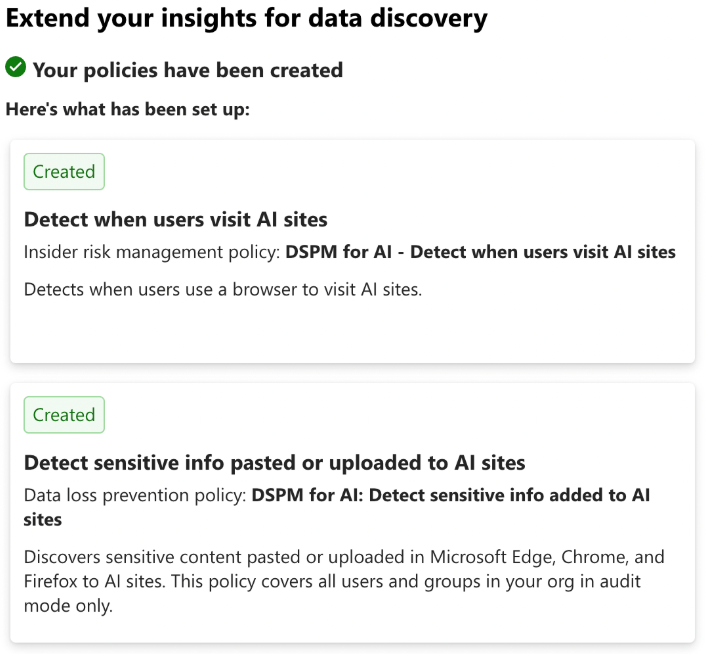
In this recommendation, two one-click policies (aka. Policies that can be created from DSPM for AI in one-click) and implementation details are displayed:
- Detect when users visit AI sites
- Detect sensitive info pasted or uploaded to AI sites
These policies help organizations to discover users navigating and sharing sensitive data with AI sites. The insights collected from these policies can highlight high priority data security risks associated with generative AI usage in the organization.
Up Next
In my next blog, I’ll provide an overview and practical implementation plan that will help organizations to understand their AI activity and further discover data security risks using DSPM for AI. Stay tuned!
 Anna Bordioug