
Microsoft Features: Microsoft Purview Information Protection, Microsoft Purview Data Loss Prevention
Estimated Read Time: 5 minutes
Sensitivity labels created and published within Microsoft Purview Information Protection have long been a way for end users, administrators, site owners, etc. to classify content according to its level of sensitivity and enforce protective settings. For more context on the protective settings available in Purview sensitivity labels, feel free to refer to my previous blog on How Purview Sensitivity Labels Help Protect Your Content.
As organizations are looking to adopt generative AI, data security concerns such as oversharing and over permissioning are top of mind. Microsoft has released a plethora of different capabilities to support organizations in securely adopting generative AI tools. With this, Microsoft Purview sensitivity labels play an important role in securing your data in AI usage. In this blog, I’ll provide an overview of how sensitivity labels can help protect your data from oversharing and over permissioning risks associated with Microsoft 365 Copilot usage.
1. DLP for AI Policy
Microsoft Purview Data Loss Prevention (DLP) supports the creation of a policy that blocks Copilot from referencing content with a particular sensitivity label applied. Creating this DLP policy can be helpful in protecting an organization’s most sensitive content from oversharing risks. It is important to note that this is a broad control that supports organizations in quickly adopting Copilot. Oversharing discovery and remediation efforts, supported by tools like SharePoint Advanced Management (SAM), Data Security Posture Management for AI (DSPM for AI), and Microsoft Graph Data Connect (MGDC) should be prioritized to support secure Copilot adoption.
To configure this DLP policy, follow the steps below:
1. Navigate to Data loss prevention > Policies in the Purview portal (https://purview.microsoft.com/datalossprevention/policies).
2. Click on +Create and create a custom policy.

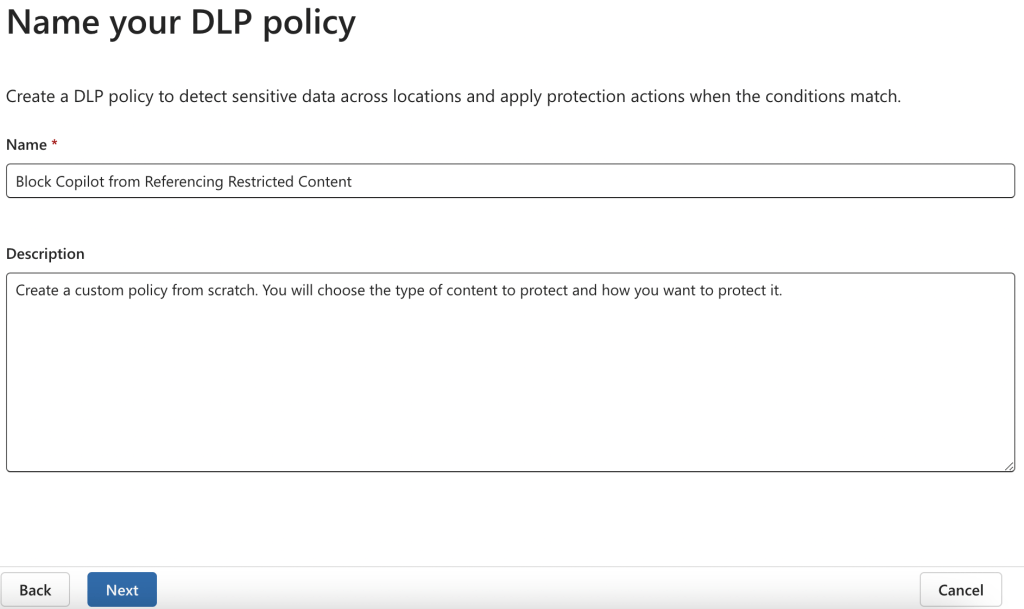
3. Assign a name and description to the policy.
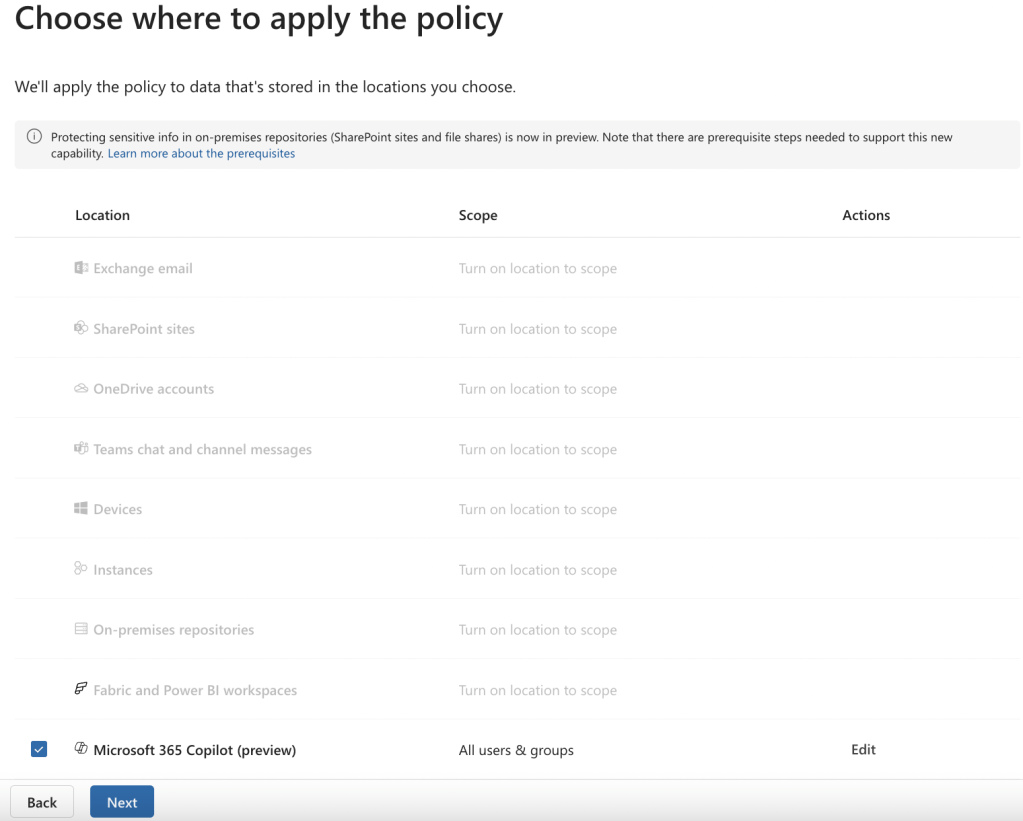
4. On the “Choose where to apply the policy page”, select the “Microsoft 365 Copilot” location. You can group it to specific users & groups if desired.
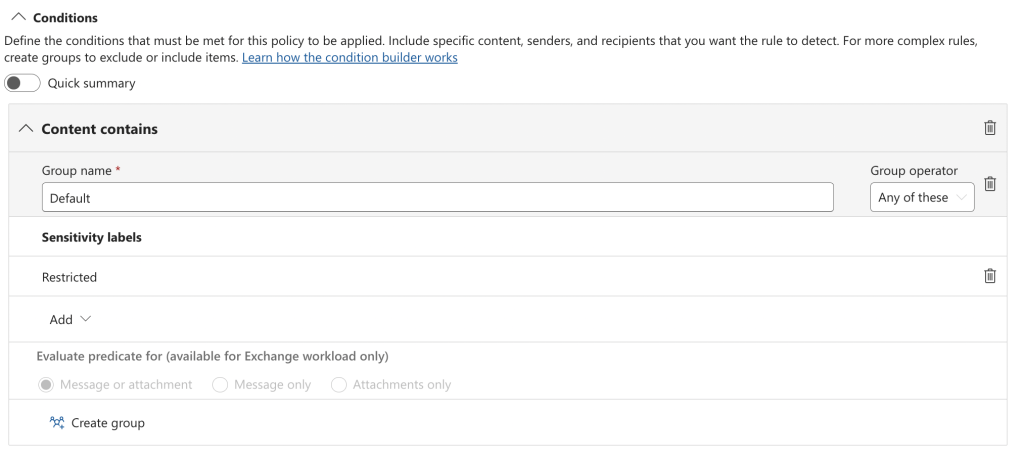
5. On the “Create rule” page, add:
a. A condition that Content contains > Sensitivity labels > Restricted
b. An action that prevents Copilot from processing content
Please note, at the time of writing this blog, this action is only enforced on labeled files in SharePoint and OneDrive that are processed in the Microsoft 365 Copilot chat experience.

6. Choose to turn the policy on immediately and create it.
Please note, at the time of writing this blog, simulation mode is not supported for Microsoft 365 Copilot. You must either choose to turn the policy on immediately or leave the policy turned off.

After deploying the above DLP policy, Copilot will not be able to reference documents with the Restricted label applied.
2. Sensitivity Label Inheritance
When Microsoft 365 Copilot generates a new document by referencing the content in one or more labeled files, it will automatically apply the highest priority sensitivity label from the referenced inputs to the output.
For example, let’s say that a financial advisor would like to generate a presentation for their client summarizing the bank’s updated investment portfolio offering. When the financial advisor opens a new PowerPoint presentation and enters a prompt that references a Word document labeled as Internal summarizing information about the portfolios, the presentation will automatically inherit the Internal label. As shown below, a banner informing the user of the inherited label appears.

In addition, any content markings or encryption settings configured for the inherited label will apply to the generated document. In this way, sensitivity label inheritance helps ensure that any sensitive content that may have been duplicated by Copilot is protected with the appropriate encryption settings, minimizing oversharing and over permissioning risks.
3. Extract Usage Right Requirement
The Extract usage right requirement refers to the fact that a user must hold the Extract + View usage right on a file in order to summarize its contents and/or create new content using Microsoft 365 Copilot. If a user holds the View but not the Extract usage right for a document, Copilot will provide a link to the referenced content. The user can then navigate to the document using the provided link and review the content themselves. In this way, unauthorized users will not be able to access and/or duplicate sensitive data using Copilot.
Although there are several ways to assign document permissions, it is recommended to do so via encrypting sensitivity labels. This is because, as I explained above, sensitivity labels and their protective settings will be inherited by Copilot-generated content. Otherwise, usage rights assigned by methods other than sensitivity labels will not be inherited.
Closing Thoughts
Microsoft Purview Information Protection and Data Loss Prevention provide mechanisms such as the DLP for AI policy, sensitivity label inheritance, and the Extract usage right requirement to help protect your data from AI-related oversharing and over permissioning risks. These capabilities support organizations in securely adopting Microsoft 365 Copilot, but monitoring and remediation efforts for oversharing and over permissioning should remain a high priority to maintain data security throughout AI usage.
 Anna Bordioug