
Microsoft Features: Microsoft Purview Information Protection
Estimated Read Time: 3 minutes
In my previous blog, I wrote about Applying Sensitivity Labels to Content in Microsoft 365. In this blog, I’ll provide an overview of the different ways that sensitivity labels can be applied to protect your content in cloud applications and on-premises repositories.
Applying Sensitivity Labels in Cloud Applications
By leveraging the integration between Microsoft Defender for Cloud Apps and Microsoft Purview Information Protection, sensitivity labels can be automatically applied to files in cloud applications.
Please note that there are a number of prerequisites for leveraging this capability. If you would like to learn more about them and about the integration capabilities, feel free to refer to the following Microsoft Learn article: Integrate with Microsoft Purview.
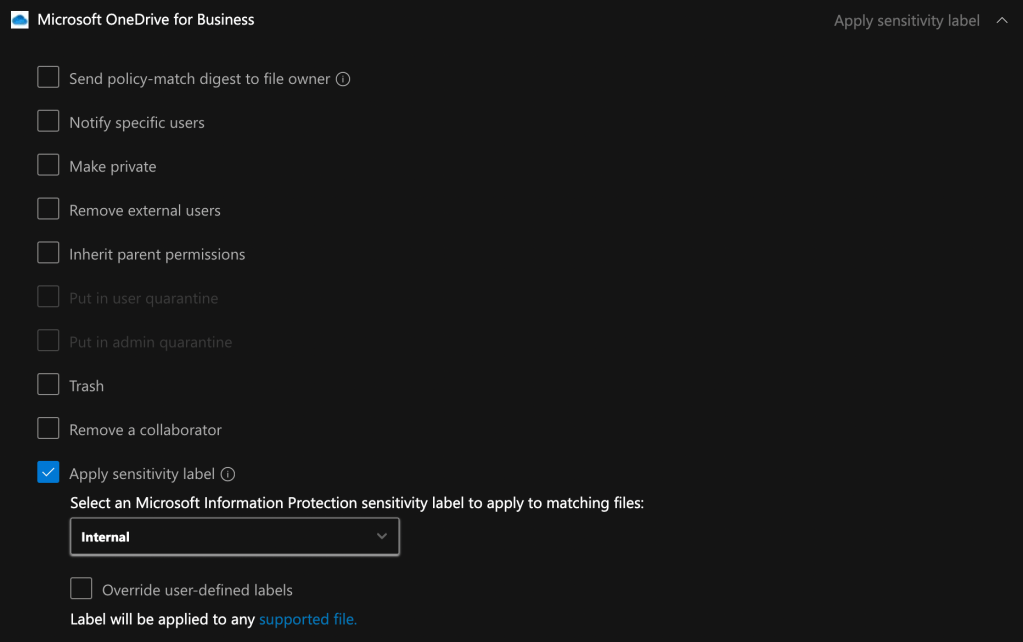
To automatically label files in cloud applications, navigate to Cloud Apps > Policies > Policy management > Information Protection in the Defender portal (https://security.microsoft.com/cloudapps/policies/management?tab=informationProtectionPolicies) and create a file policy. After specifying the policy template, name, severity, category, file filter, and other settings, select Apply sensitivity label under the governance actions. If desired, sensitivity labels applied by users can be overridden.
Applying Sensitivity Labels in On-Premises Repositories
The Microsoft Purview Information Protection scanner supports automatic and default application of sensitivity labels to files stored in NAS appliances, file shares (SMB/NFS protocol), and SharePoint on-premises repositories.
Below is a list of items required to configure and run the scanner. For more information on pre-requisites, feel free to refer to the following Microsoft Learn article: Get started with the information protection scanner:
- Windows Server computer to run the scanner, with the Microsoft Purview Information Protection client installed.
- Service account to run the scanner service on the Windows Server computer and download the scanner’s policy.
- SQL server to store the scanner configuration data.
- At least 1 sensitivity label configured in Microsoft Purview Information Protection with client-side auto-labeling settings specified.
- Note: if the “recommend that users apply the label” option is selected, the scanner can be configured to treat recommended labeling as automatic
- Note: a default sensitivity label can be configured in the content scan job if client-side auto-labeling settings are not specified
- A Microsoft Entra token for the scanner, allowing it to authenticate to the Microsoft Purview Information Protection scanner service.
For guidance on configuring and installing the Microsoft Purview Information Protection scanner, refer to the following Microsoft Learn article: Configure and install the information protection scanner.
Please note that by default, the Information Protection scanner will only protect Office (e.g., .doc, .ppt, .xslx, etc.) and PDF files. This default behaviour can be changed via PowerShell. For more information, refer to the following Microsoft Learn reference: Change which file types to protect.
To automatically apply sensitivity labels to files stored on-premises according to the auto-labeling conditions specified in your sensitivity labels (i.e., client-side auto-labeling), select the following configurations in the content scan job:
- Treat recommended labeling as automatic: Off (this can be turned On if you would like recommended sensitivity labels to be applied automatically when the appropriate conditions are met)
- Enforce sensitivity labeling policy: On
- Label files based on content: On
- Default label: Policy default (this can be changed to custom and a default label can be selected to be applied to content that does not match the auto-labeling conditions)
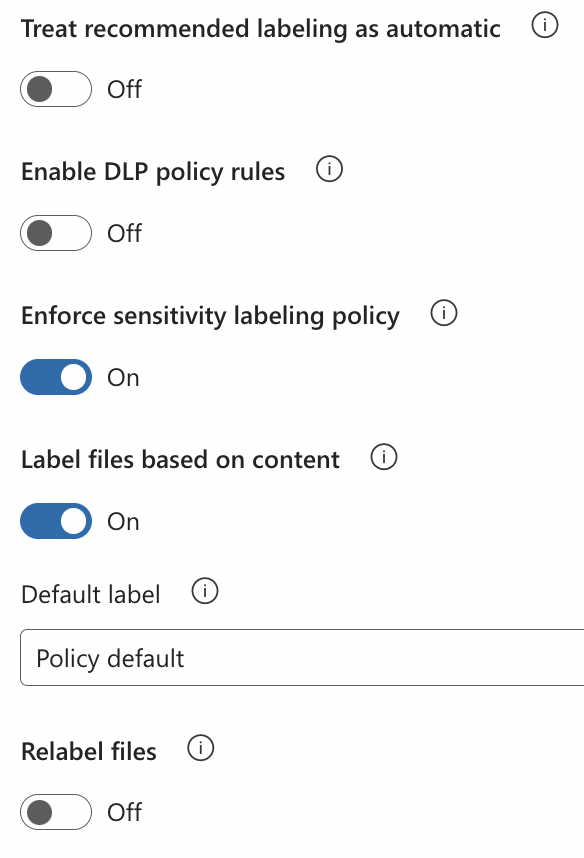
Instead, if you would like to apply a specific sensitivity label by default, select the following configurations in the content scan job:
- Label files based on content: Off
- Default label: Custom

In both cases, if you would like for existing sensitivity labels to be overwritten (regardless of their priority), set “Relabel files” to On.
Closing Thoughts
Not only is sensitivity label application supported across Microsoft 365, but it is also possible in cloud applications and on-premises repositories. This ensures that your organization’s data is appropriately classified and safeguarded in the cloud and on-prem. In my next blog, I’ll provide an overview of how Microsoft Purview sensitivity labels can be used to help protect your data throughout generative AI adoption. Stay tuned!
 Anna Bordioug