
Microsoft Features: Microsoft Purview Information Protection
Estimated Read Time: 6 minutes
Microsoft Purview Information Protection allows organizations to label their data according to its level of sensitivity by defining, publishing, and applying Sensitivity Labels. The ability to classify organizational data by sensitivity level is a crucial component of any successful data security strategy. Doing so allows administrators to better understand their organization’s data profile, identify effective policies to be enforced, and avoid blocking valid business processes.
However, Purview Sensitivity Labels provide the tools necessary to go even further in protecting your data. This includes:
- Encryption and Access Control: Assign permissions now or let users decide permissions for files and emails with a given sensitivity label applied to prevent unauthorized users from accessing sensitive data.
- Visual Markings: Specify content markings such as headers, footers, or watermarks to help users be better informed of the content’s classification to drive responsible handling of sensitive information.
Please note, in this blog I will be covering features related to Sensitivity Labels for files and emails only. If you are interested in learning more about how Sensitivity Labels for groups and sites can help protect your data, feel free to refer to my previous blog on Applying Guardrails to SharePoint Online Sites Using Sensitivity Classification.
Diving Deeper Into Sensitivity Label Encryption and Access Control Capabilities
Sensitivity label encryption and access control capabilities in Purview comes in two flavours: user-defined permissions (UDP) and admin-defined permissions (ADP).
User Defined Permissions
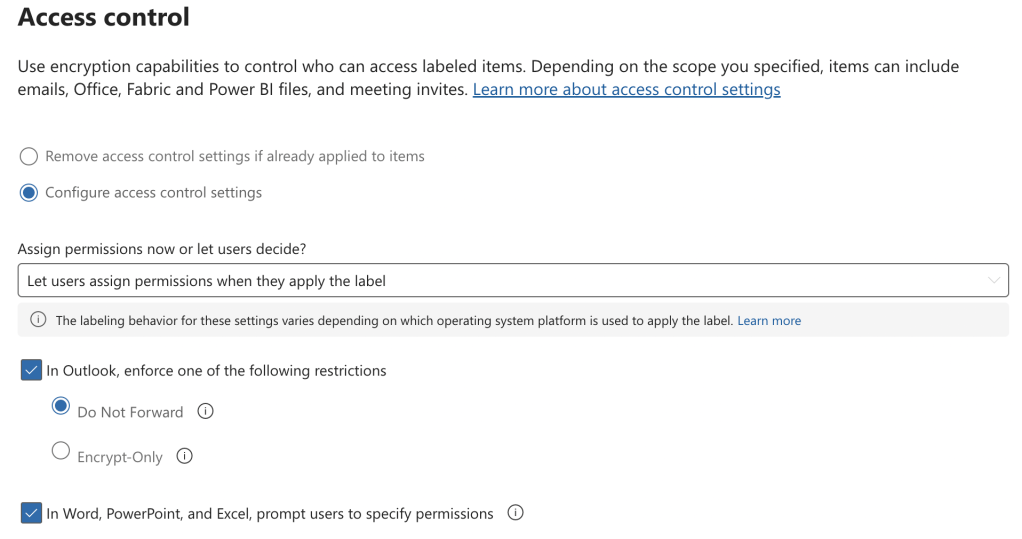
UDP labels allow users to specify access controls at the time of label application. This capability supports flexibility in the protections that are applied to help dynamically foster secure collaboration on sensitive information. UDP labels tend to be best suited for classifications that diverse users across the organization work with, and therefore, administrators will not know the exact groups of users to assign permissions to when creating the sensitivity label.
A limitation of UDP labels that is important to be aware of is that users cannot apply them while using Office for the web. Instead, they will be prompted to open the content in Word, for example, to apply the UDP label. Thankfully though, Microsoft’s roadmap currently says that support for applying UDP labels in Office for the web in Microsoft 365 has a planned rollout start of March 2025.
At the time of creating a UDP label, the following settings can be configured:
1. In Outlook, apply one of the following rights management templates: Do Not Forward or Encrypt-Only
This setting ensures that one of the above mentioned rights management templates are applied to emails with the UDP label to either prevent recipients from forwarding, printing, and copying the message, or requiring that recipients are authenticated to view the message.
2. In Word, PowerPoint, and Excel, prompt users to specify permissions
This setting ensures that upon applying the UDP label, users are prompted to assign permissions to a group of users and optionally specify an expiry date.
Admin-Defined Permissions
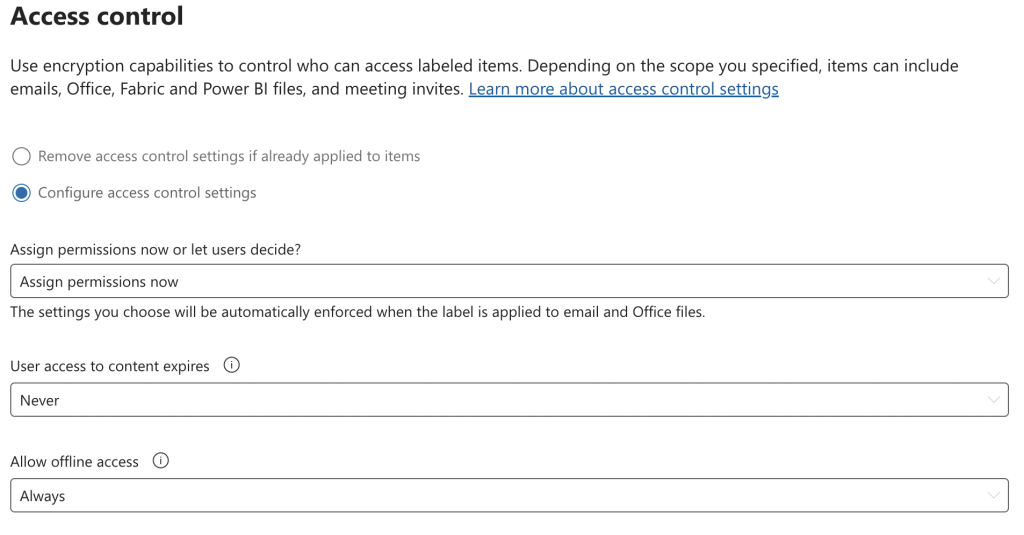
ADP labels do not allow users to specify access controls at the time of label application. Instead, administrators define permissions when creating the label in the Purview console, which are enforced on content upon label application. ADP labels tend to be best suited for classifications with a well-defined group of users that work with such content (e.g., legal department, users from a specific domain, etc.).
At the time of creating an ADP label, the following settings can be configured:
1. Time after which user access to content expires
2. Time during which offline access to content is permitted
In addition, administrators are prompted to assign permissions to a specified scope of users for the ADP label. There are several options in doing so:
- Scope: Add all users and groups in your organization, add any authenticated users, add specific users or groups, and add specific email addresses or domains.
- Permissions: Choose from built-in permissions (e.g., Co-Author) or configure custom permissions by selecting specific usage rights. Please refer to the following Usage Rights Descriptions by Microsoft to learn more about the available usage rights.

Diving Deeper into Sensitivity Label Visual Markings Capabilities
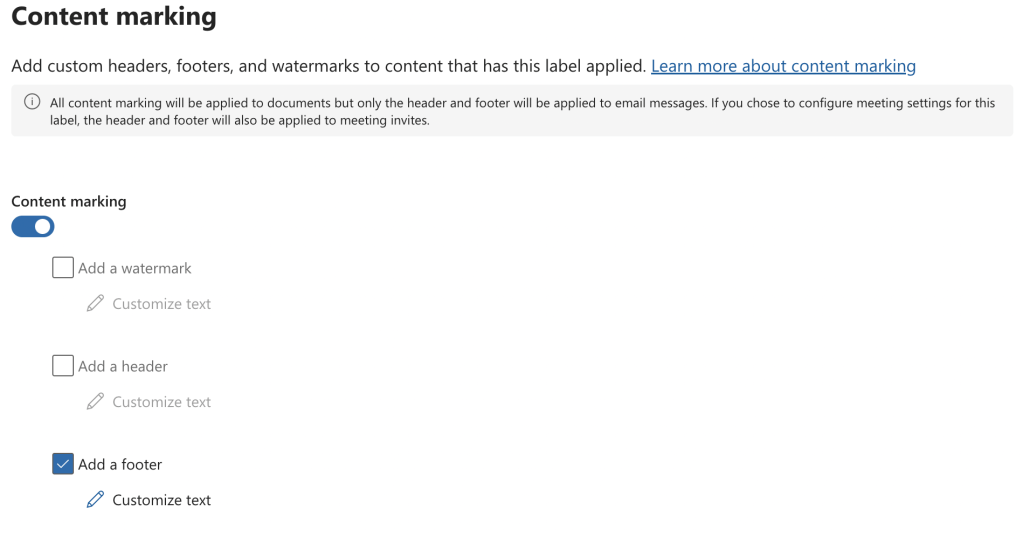
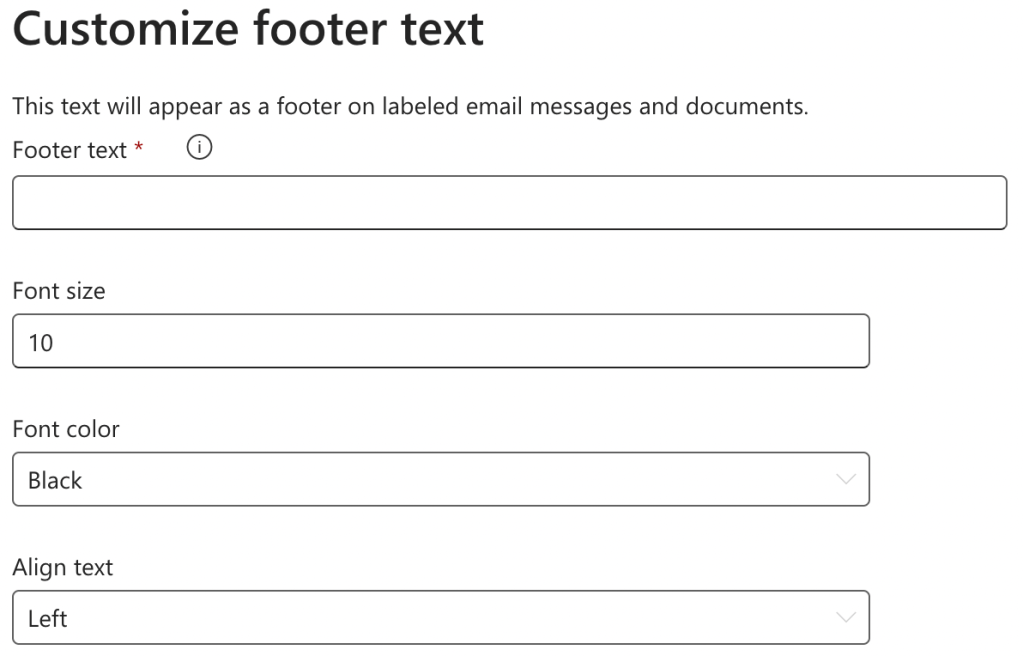
Visual markings such as headers, footers, and watermarks can be configured to help users be better informed of the content’s classification. These markings are configured at the time of label creation and allow for the following customizations:
- Marking text
- Font size and colour
- Text alignment
The following variables can be used for dynamic marking text:
- ${Item.Label}: Display name of applied label
- ${Item.Name}: File name / subject of email
- ${Item.Location}: Path and file name / subject of email
- ${User.Name}: Display name of user applying the label
- ${User.PrincipalName}: UPN of user applying the label
- ${Event.DateTime}: Date and time when the label is applied
It is also possible to apply different content markings for different Office applications by using the following syntax:
${If.App.<application type>}<marking text> ${If.End}
It is important to note that not all types of content markings can be applied to all content. The below table summarizes these limitations:
| Emails | Documents | |
| Header | Yes | Yes |
| Footer | Yes | Yes |
| Watermark | No | Yes |
Dynamic Watermarks
Although still in preview, Dynamic Watermarks (not to be confused with using variables in marking text) automatically apply the user’s principal name as a watermark when a user accesses a file with the appropriate sensitivity label applied. This watermark can only be removed by changing the sensitivity label of the document to one that applies a different or no dynamic watermark (please note that this requires the Export or Full Control usage right). This feature can only be configured for encrypting labels and does not support font, colour, or alignment customization at this time.
Dynamic watermarks can act as effective deterrents of screen captures and printing for highly sensitive content. However, it’s very important to ensure that the minimum required version for Office applications is met within your organization before deploying dynamic watermarks to ensure that users can continue to open their documents in the desktop version of Office.
Closing Thoughts
On top of the inherent data security benefits of correctly classifying sensitive information, sensitivity labels also come equipped with capabilities such as encryption and visual markings to further protect your data. For this reason, Purview sensitivity labels are a key component of any effective organizational data security strategy.
Stay tuned for my next blog that will detail how to configure encryption and visual markings in Purview Sensitivity Labels to help protect your data.
 Anna Bordioug