
Microsoft 365 features: Microsoft Entra Conditional Access, Microsoft Purview Sensitivity Labels
In today’s hybrid work environment, protecting sensitive documents in SharePoint Online is a critical concern for many IT administrators. One approach to securing these documents is to block or restrict access when users attempt to access a site from unmanaged devices. In this blog we’ll talk about how we can leverage Microsoft Purview sensitivity labels to protect SharePoint sites via Microsoft Entra conditional access, and some of the nuances to be aware of when implementing this solution.
Using Microsoft Purview Sensitivity Labels to Protect SharePoint Sites
Microsoft Purview sensitivity labels offer an effective way to control access to SharePoint sites and their content. When applied to a site, these labels can enforce external sharing settings and restrict access for unmanaged devices. Sensitivity labels leverage Microsoft Entra conditional access to allow organizations to enforce restrictions based on whether the accessing device is managed or unmanaged. This provides a powerful mechanism for ensuring sensitive content is only accessible from trusted devices, minimizing the risk of data leakage.
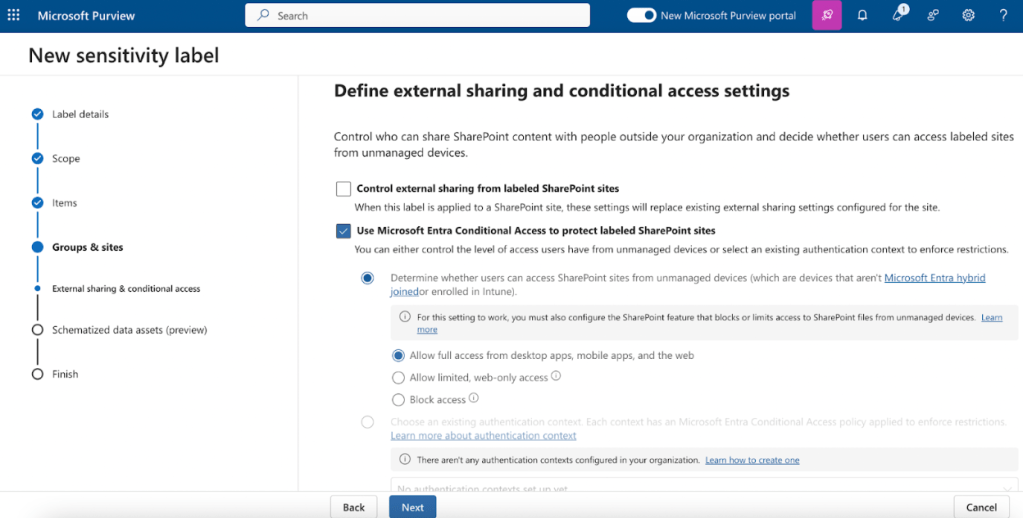
Sensitivity labels scoped to SharePoint sites are configured in Microsoft Purview (https://purview.microsoft.com). For more information on how to enable and configure sensitivity labels for sites, feel free to refer to How to enable sensitivity labels for containers and synchronize labels and How to configure groups and site settings.
What Are Unmanaged Devices?
Unmanaged devices are those that are neither Microsoft Entra hybrid joined nor enrolled in Microsoft Intune. IT administrators have limited control over the security posture of unmanaged devices, making it riskier for these devices to access sensitive content. For more information on which devices are considered to be unmanaged, feel free to refer to What is a Microsoft Entra hybrid joined device? and What is an Intune enrolled device?.
Enforceable Access Controls for Unmanaged Devices
Admins have 3 options when it comes to restricting SharePoint Online access from unmanaged devices using Microsoft Purview sensitivity labels. Each option presents a different experience for the end user.
1. Allow full access from desktop apps, mobile apps, and the web
This option allows users to access the SharePoint site from unmanaged devices with no restrictions. The user can access all files and features, including the ability to download, sync, and edit documents offline. While convenient, it poses a higher security risk as sensitive data can be accessed and potentially downloaded to untrusted devices.
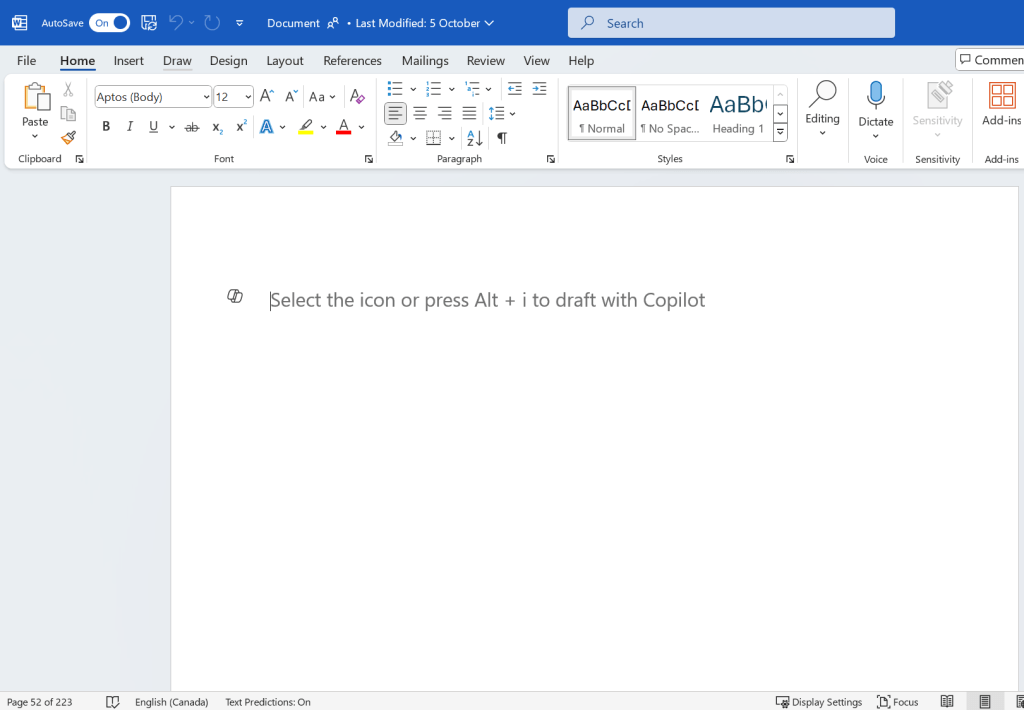
2. Allow limited, web-only access
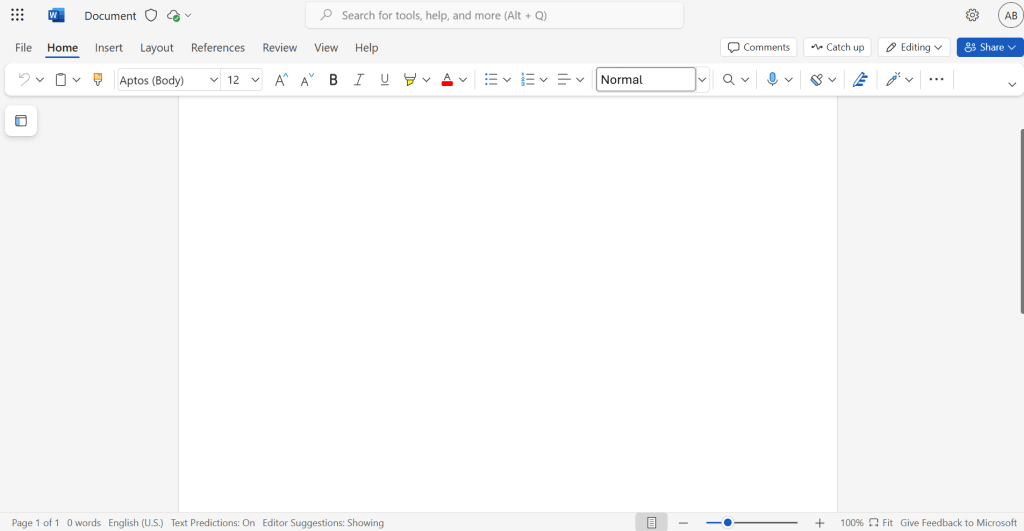
Limited access restricts users to only accessing content in the browser without the ability to download, print, or sync files. This option strives to strike a balance between usability and security, allowing users to view and edit documents while preventing data from being stored on unmanaged devices.
3. Block Access
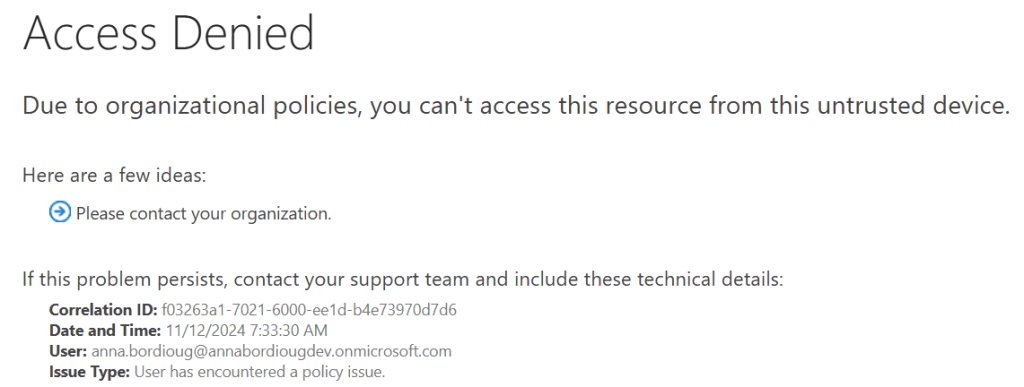
With this option, users on unmanaged devices will be blocked from accessing the SharePoint site. When trying to access the site, the user receives an error message informing them that access is restricted by the organization’s policies. This is the most restrictive option which may hinder productivity if users regularly work from unmanaged devices.
A Necessary Prerequisite
To ensure that unmanaged device controls for labeled SharePoint sites are enforced, admins must configure the “Use app-enforced restrictions” setting in Microsoft Entra Conditional Access. It’s important to note that even if admins configure the unmanaged device restrictions within the sensitivity label, they must also enable app-enforced restrictions in Microsoft Entra for the controls to take effect. If this step is missed, no warning messages are shown but the unmanaged device restrictions will not be enforced. For step-by-step instructions on configuring the “Use app-enforced restrictions” setting in Microsoft Entra, refer to Use app-enforced restrictions.
Tenant-Level Settings and the Most Restrictive Policy
Unmanaged device access settings can also be configured at the tenant level within the SharePoint Admin Center. When different configurations exist at both the site and tenant levels, the most restrictive setting is always enforced. For example, if tenant-wide settings block unmanaged device access but a SharePoint site is configured for web-only access, the block setting will prevail.
Conclusion
Admins looking to protect documents in SharePoint Online from unmanaged devices can leverage Microsoft Purview sensitivity labels and Microsoft Entra conditional access. By configuring sensitivity labels that provide full access, limited web-only access, or block access altogether, admins can tailor access control settings to their organization’s needs. However, it’s critical to remember that app-enforced restrictions must be enabled for these controls to take effect, and tenant-level settings will always enforce the most restrictive policy. Balancing security with usability is key to ensuring the protection of sensitive data without hindering productivity.
 Anna Bordioug
Leave a Reply